
SiteW makes website creation easy and enjoyable thanks to a solution without technical or financial constraint.
Testimonials, interviews and examples of created websites. Discover our users’ reviews and creations.
Our history, news and commitments. Beyond online service, discover SiteW.
All resources at the service of your online presence.
8 minutes
On the internet, you have the entire world at one click from your office. Whether you are an artist, artisan, or seller, the internet gives you the possibility to conquer the world easily.
First, we create a professional website and then, we translate it to be visible worldwide. When we put it like that, crossing borders thanks to the Web seems easy.
But what are the steps to create a multilingual website? You have to respect some rules to translate your website.
Here are advice to get an international website without making mistakes.
Are you ready to create your multilingual website?
Internationalization is often the first reason that encourages you to translate your website. As an artist to get your work known, or as a seller to find new markets, creating a bilingual or multilingual website is advantageous.
More than half of websites are on the international market and bet on exportation. The Internet gives you the possibility to gain a lot without taking big risks.
The creation of a bilingual website not only enables you to increase your public or customer network, but also to favour your reputation:
Get your website translated enables you to build a more serious and professional image.
Google will also appreciate your process of internationalization: Google ranks multilingual websites higher.
So creating a multilingual website only offers advantages.
But how to translate your website?
A multilingual website has many advantages. So if you still hesitate to create a multilingual website, let’s have a look at the following advantages:
It develops the number of potential buyers
Online buyers are more and more numerous in the entire world. The Internet has no boundaries. A multilingual website will enable you to reach a new international audience.
It increases the number of sales
A bilingual or multilingual website will enable you to increase your sales.
It shows you are open-minded
Translating your website shows that you are open to all the cultures. Your local and international customers have a positive image of you.
It has a competitive advantage
Your international customers will appreciate the fact that you speak to them directly in their maternal language. Contrary to your competitors, you spend time with your customers, and you listen to them.
It offers visibility
Due to all the elements above (a better display, a positive image, a perfect SEO), your digital visibility will increase.
Even if building a multilingual website is a great idea, don’t rush. If you want to be successful, proceed carefully.
First, do a market study in the target countries to check if there is a market in these territories for the products you sell. Each culture is different. Some stores are successful in a country, and fail in another one.
Don’t translate your website into as many languages as possible. On the Web, reward quality rather than quantity.
So, starting a process of internationalization for your website is not just duplicating it in another language.
But how to translate your website?
When you speak to a foreign public, each population has their specific references, history, and culture. That’s why your website internationalization must take these elements into account, and you can’t translate words literally.
When you start a process of internationalization, to be listened to and successful in the target countries, respect the following aspects:
Units of measurement: some countries use different units of measurement, especially for clothes and sizes, so be careful.
Climate: Seasons reverse depending on the hemisphere. Temperatures change throughout the year depending on the country. Therefore, adapt your offer.
Legal measures: Find out about the current laws of the target countries. For example, data protection in Europe is different from the rest of the world. Moreover, pay attention to specific rules for after-sales service, returns and refunds, etc.
Culture: Each population has their traditions, folklores, public holiday, etc. Get information about these specificities and take them into consideration to adapt your marketing strategy.
Now you know exactly how to create your multilingual website and start a process of internationalization.
But how to transform your website created with SiteW into a multilingual one?
On our platform, our tool to duplicate pages and blocks enables you to create a multilingual website quickly. To that end, follow these 4 steps.
First, move the background contents to your English pages. To that end, use the block multiselect tool and then the appropriate icon in the toolbar at the bottom of the blue tab.
By clicking and dragging the cursor on all the background pages, you retrieve all the blocks quickly.
Then click on the duplication icon at the bottom right of the editor and click on Move. You just need to move the blocks to an English page.
Copy the English pages with the page duplication tool in the toolbar, at the bottom of the orange tab in the Pages section of the editor.
Add flags to choose the language and duplicate them on all the pages.

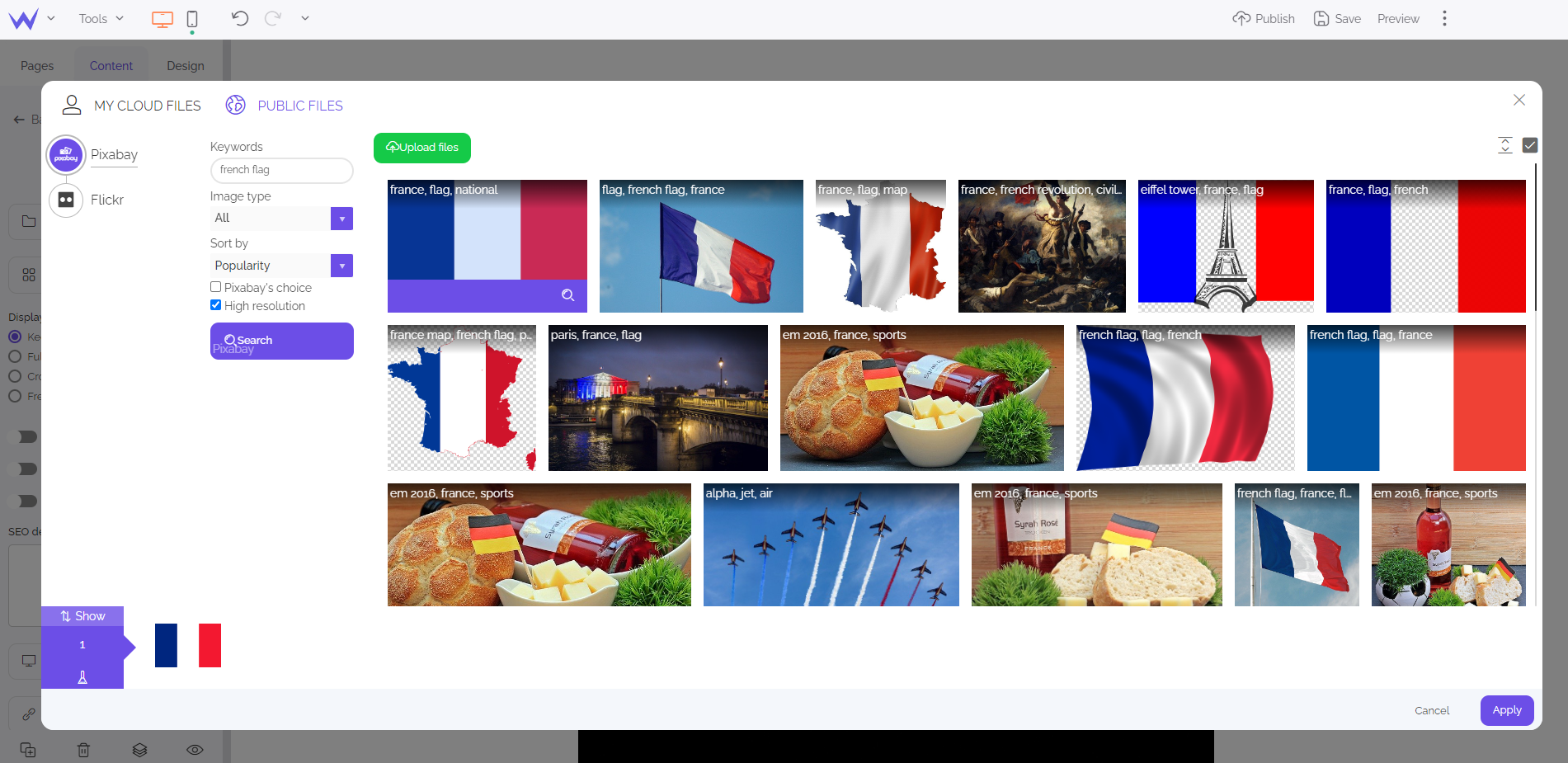
Then highlight your French flag on your Welcome page.
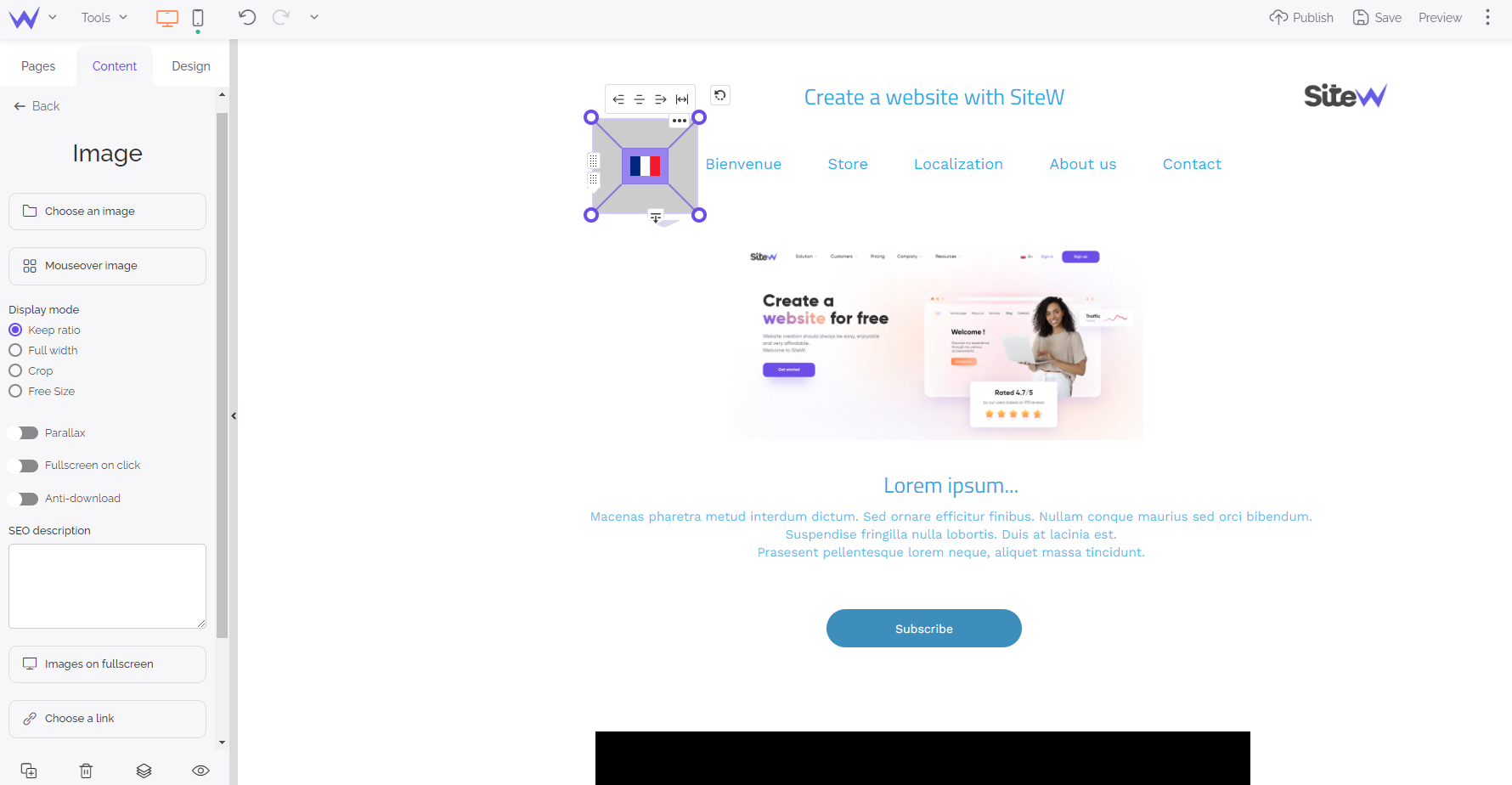
To that end, click on Choose a link and add the link of the page you want to translate.
Go to your first English page.
Click on the Menu block to select it, and then click on the Manage pages button.
You can also double-click on the menu to get directly to the page management.
In the “Pages listed in this menu” and “Pages displaying this menu” columns, select all the English pages.
In this example, we just select the “Welcome” page. Click on Update to save.
For each page of the website, define the language by clicking on the SEO button in the toolbar at the bottom of the orange tab.
You can find the SEO section by clicking on the SEO logo, at the bottom of the Pages tab, at the right of the duplication logo.
Now you can translate your Text blocks on the French or other pages.
To that end, you can use an online translator or hire the services of a professional translator.
Now you know why it’s important to create a multilingual website and how to design it with SiteW.
Wait a minute! Here are our additional tips for a successful multilingual website.
If you want to develop your visibility, SEO is essential in web design.
Before starting a process of internationalization, it’s important to detect the SEO specificities of a multilingual website.
In summary, translating your website is good for SEO:
👉 It may increase the traffic on your pages, which is a positive sign for search engines.
👉 Google promotes multilingual websites.
However, don’t make mistakes that would be prejudicial to your SEO:
First, gather information on the search engines that are mainly used in the target country. In general, it’s Google, but it isn’t always the case. You may use different tools to search keywords.
The most frequent search terms are different depending on the countries. Don’t translate them literally, but investigate language by language.

Update your pages after translating them. The foreign versions of your website must be updated regularly, otherwise Google will ignore them.
You’ll have a good SEO if you update your content regularly.
To animate your translated websites, you’ll proceed in the same way as for your English website: it’ll be possible to be based on the celebrations, events, and news of the target country.
We have just seen how to make a multilingual website:
The general rules to translate your website correctly
The concrete concept if you want to do it with our tool
The measures to take if you want to get a successful process of internationalization on the web.
You just need to create your multilingual website and start conquering the world!
Last update: April 02, 2025